
Snapchat Notifications Not Working? 9 Best Ways to Fix!
Snapchat Notifications Not Working has become a common frustration among users, leaving many feeling disconnected from this popular social platform.
With millions relying on Snapchat to keep in touch with friends and share fleeting moments, missed notifications can lead to social FOMO.
I’ll uncover nine effective solutions to resolve notification problems, allowing you to stay connected without interruptions.
Fix Snapchat Notifications Not Working Issue in 2026
There are practical solutions that can help you troubleshoot and restore those important alerts. Here are 9 ways to fix these issues:
Enable Notifications Within the Snapchat App
By customizing your notification settings, you empower yourself to stay updated on the latest stories, ensuring your social circle feels connected. Please follow these steps:
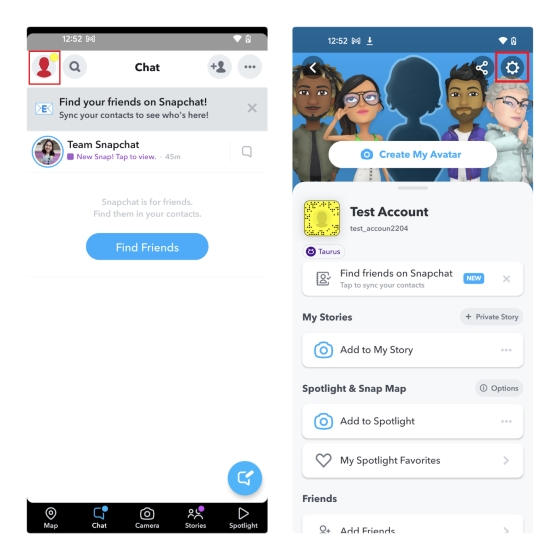
- Open Snapchat and tap on your profile picture (or Bitmoji) at the top left.
- Tap the cog icon in the top right to access Settings.
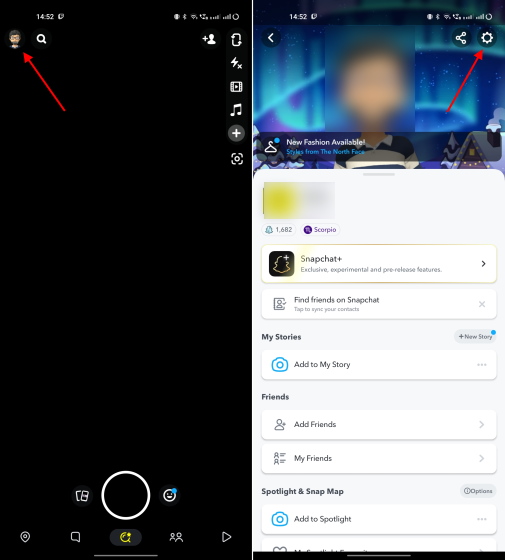
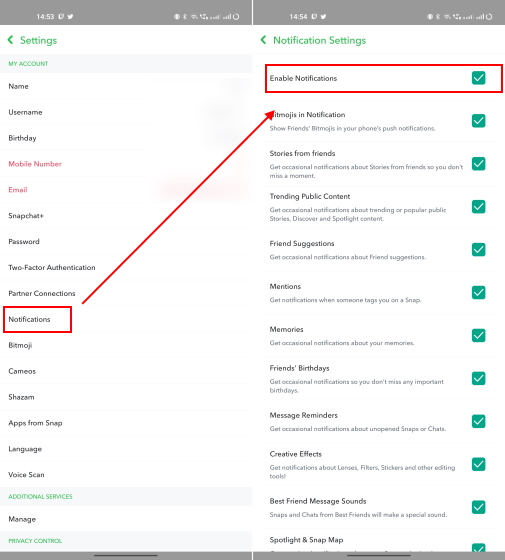
- Select “Notifications” and toggle on the “Enable Notifications” option.
- Customize your preferences for notification sounds, vibrations, and screen wake features.
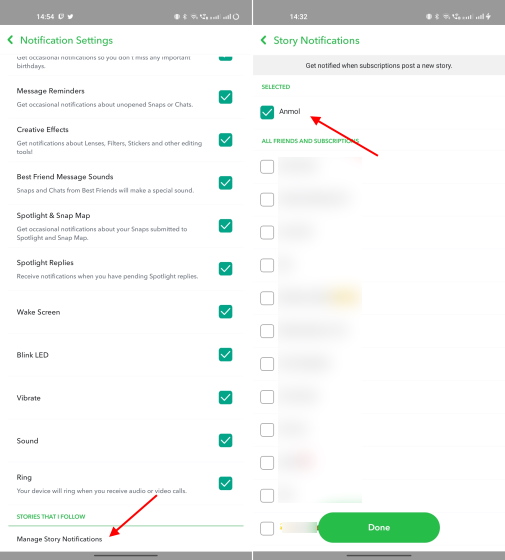
- Scroll to the bottom and tap “Manage Story Notifications.”
- Search for friends and add them to receive alerts for new story posts.
Check Your Phone’s Notification Settings
Checking your phone’s notification settings is crucial for smooth communication on Snapchat.
- Open your phone’s Settings.
- Scroll down and tap on Apps or Applications.
- Find and select Snapchat from the list.
- Tap on Notifications.
- Ensure that notifications are enabled and set to your preference.
Read More: ICYMISnapchats Move to Search with Vurb
On iPhone
- Open the Settings app and go to Notifications.
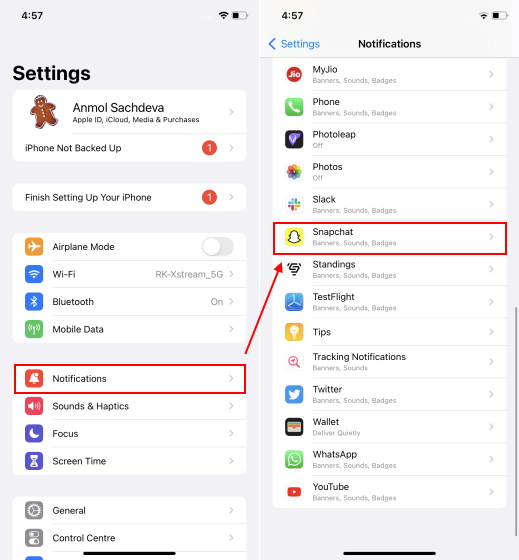
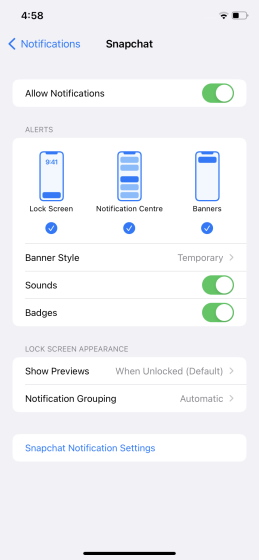
- Tap on Snapchat and ensure Allow Notifications is toggled on.
- Enable Sounds and Badges for real-time updates.
On Android
- Access the Settings app and head to Notifications.
- Search for Snapchat and select it.
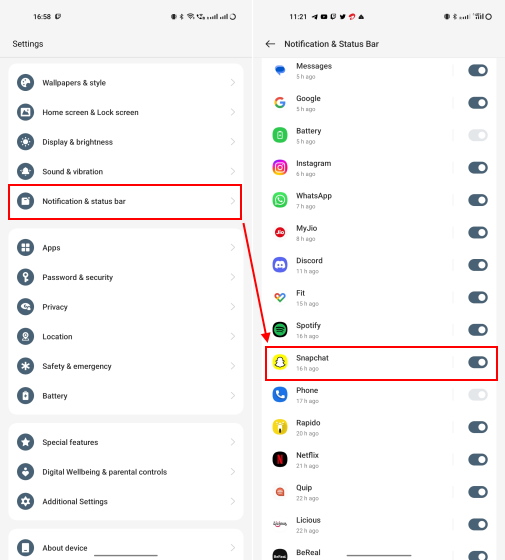
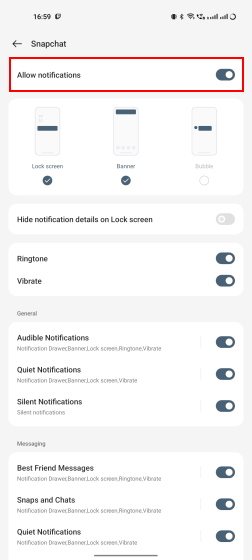
- Ensure the Allow notifications toggle is on and activate any sound or vibration settings.
Ensure Do Not Disturb Mode Is Disabled
If you find Snapchat notifications are still not working, it’s worth exploring the ‘silent’ nature of DND settings.
On iPhone: Disable DND / Focus Mode
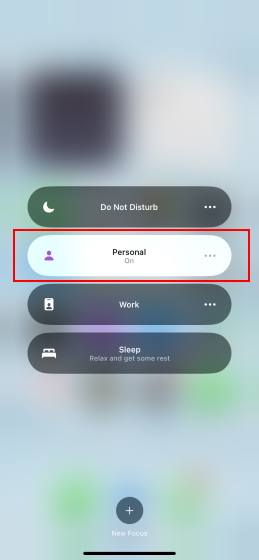
- Swipe down from the top right corner to access the “Control Center.”
- Check the Focus mode tile; if it reads “Do Not Disturb – On,” this may be blocking your Snapchat notifications.

- Tap on the Focus mode title and select a different one, like “Personal,” to start receiving notifications again.
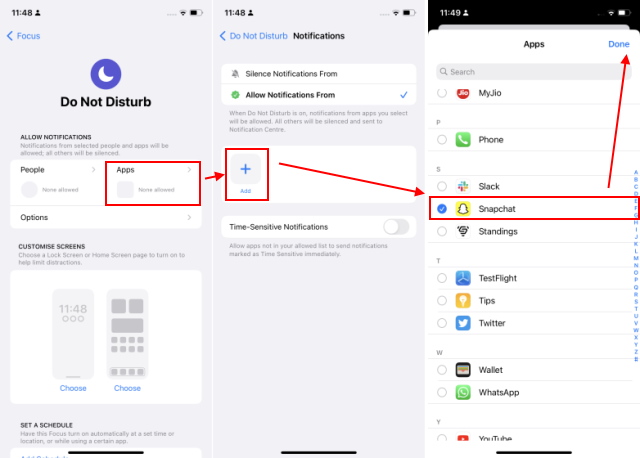
- If you prefer to keep DND enabled, you can add Snapchat as an exception.
- Navigate to Settings > Focus > Do Not Disturb.
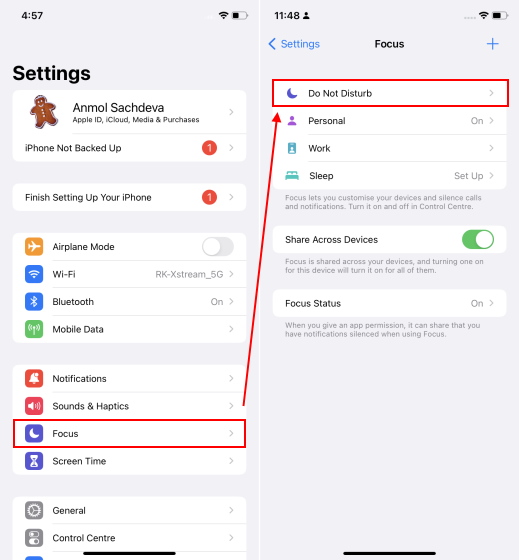
- In the “Allow notifications” section, select “Apps” and tap the “Add” button to include Snapchat.
On Android: Disable Do Not Disturb Mode
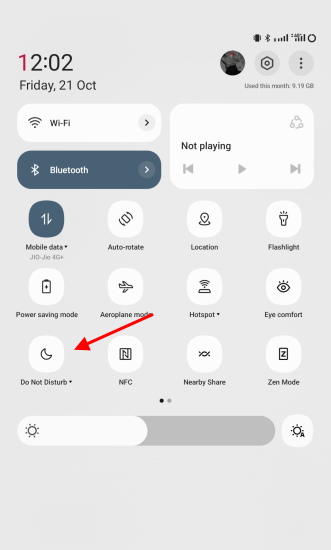
Here are two quick ways to check:
- Swipe Down Notification Panel: Pull down from the top of your screen to open the notifications panel. Look for the DND quick tile; if it’s highlighted, tap it to deactivate.
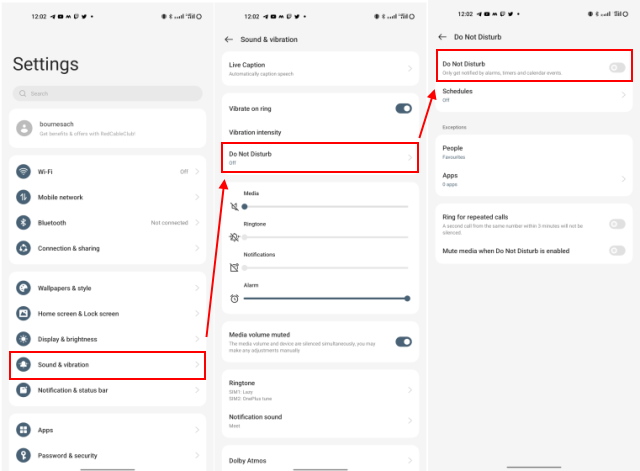
- Access Settings: Navigate to Settings> Sound & Vibration> Do Not Disturb. This path allows you to confirm if DND is enabled and set Snapchat as an exception, ensuring you don’t miss important alerts even when DND is active.
Enable Background App Data Usage
When this feature is active, apps like Snapchat can continuously communicate with their servers, ensuring you receive messages and alerts as they arrive.
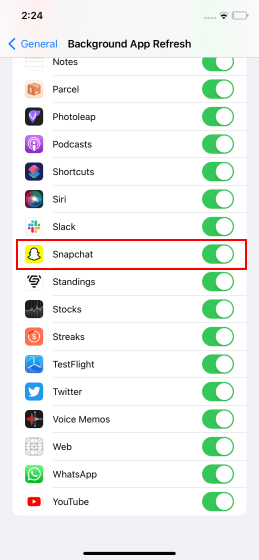
Enable Background App Refresh on iPhone
To enable Background App Refresh for Snapchat on your iPhone, follow these concise steps:
- Open Settings.
- Navigate to General > Background App Refresh.
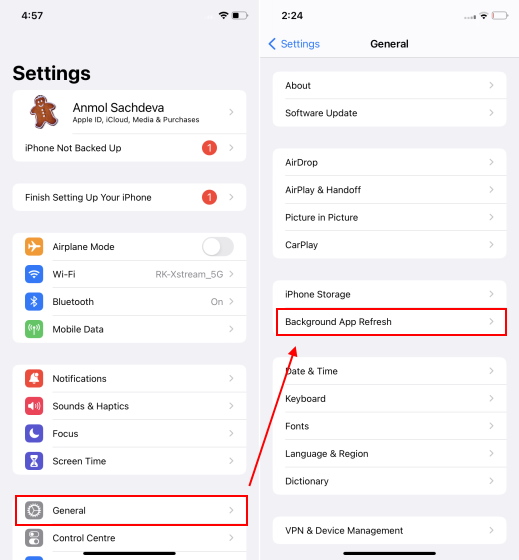
- Scroll down and locate Snapchat.
- Ensure the toggle next to the app’s name is enabled.
Read More: Snapchat vs Instagram: The Social Media Soap Opera 2026
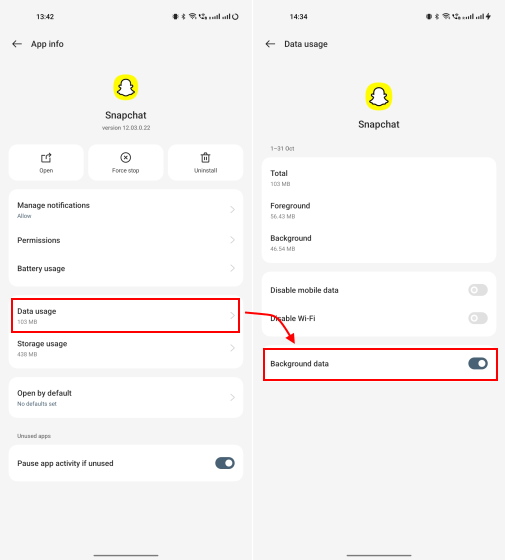
Allow Background Data Usage on Android
To enable background data usage for Snapchat on your Android device, follow these concise steps:
- Navigate to Settings > Apps > App Management > Snapchat.

- Tap on Data usage and toggle on Background data.
- Still on the App info page, select Battery and enable Allow background activity, confirming with Allow if prompted.
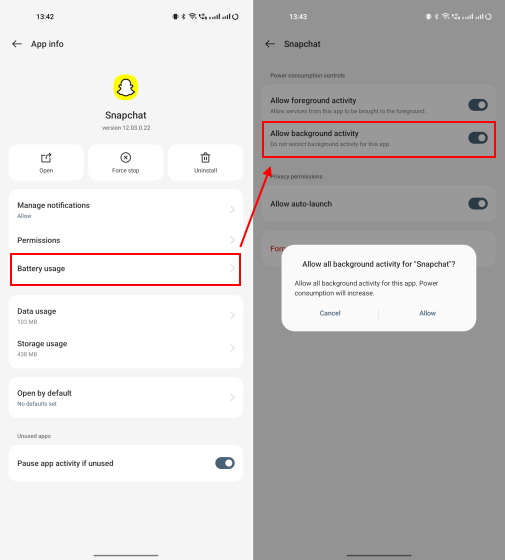
- Be mindful that this constant activity might drain your phone’s battery faster.
Clear Cache from Snapchat Settings
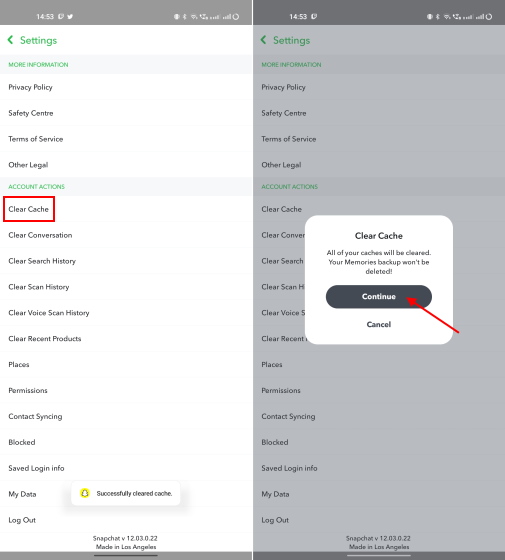
When the app accumulates corrupt data, it can impede performance, leading to bugs or failed notifications. Steps to Clear Cache from Snapchat Settings:
- Open Snapchat and tap your profile picture (or Bitmoji) in the top left corner.
- Tap the settings cog icon at the top right.
- Scroll down and select the “Clear Cache” option.
- Confirm by tapping “Continue” in the pop-up that appears.
Log Out and Log Back Into Snapchat
If you’re struggling with notifications not working or Snaps not sending, a quick logout can sometimes work wonders, helping restore proper functionality.
- Tap your profile picture (or Bitmoji) at the top left.
- Tap the gear icon (Settings) at the top right.
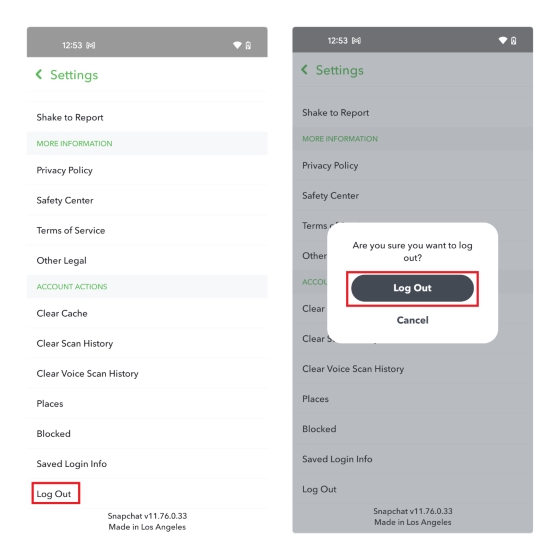
- Scroll down and select “Log Out.”
- Confirm by tapping “Log Out” again in the pop-up.
Update Snapchat on Android and iOS
If you’re experiencing issues such as notification problems or features not functioning correctly, it could be due to an outdated version. Here’s how to update Snapchat easily on both platforms:
On iPhone:
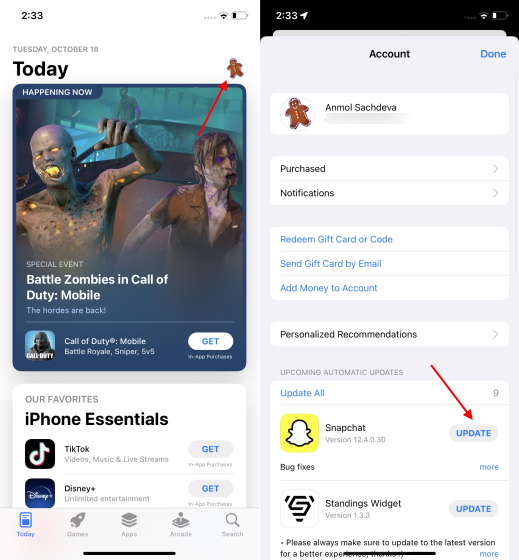
- Open the App Store.
- Tap your profile picture in the top right corner.
- Find Snapchat in the list and tap “Update.”
On Android
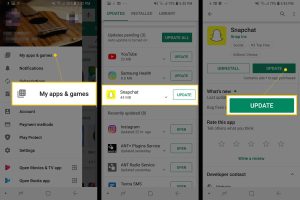
- Open the Google Play Store.
- Tap your profile picture in the top right corner.
- Select “Manage apps and devices” and look for “Updates available.”
- If Snapchat is listed, tap “Update.”
Uninstall and Reinstall Snapchat
Uninstalling and reinstalling Snapchat can be an effective measure to troubleshoot notification issues. Here are the steps to do this on both iPhone and Android:
On iPhone:
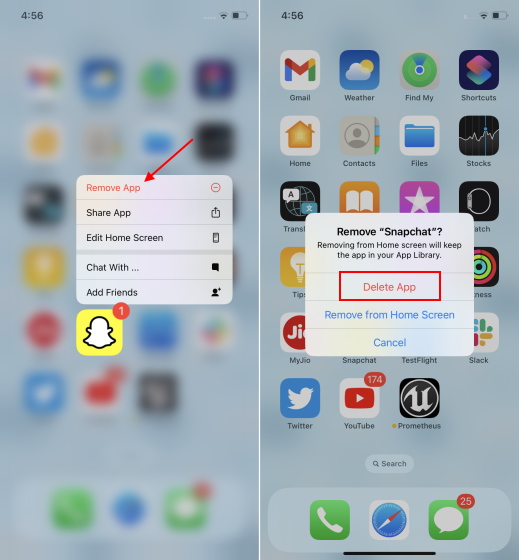
- Long-press the Snapchat icon on your home screen.
- Tap “Remove App,” then select “Delete App” in the pop-up menu.
On Android:
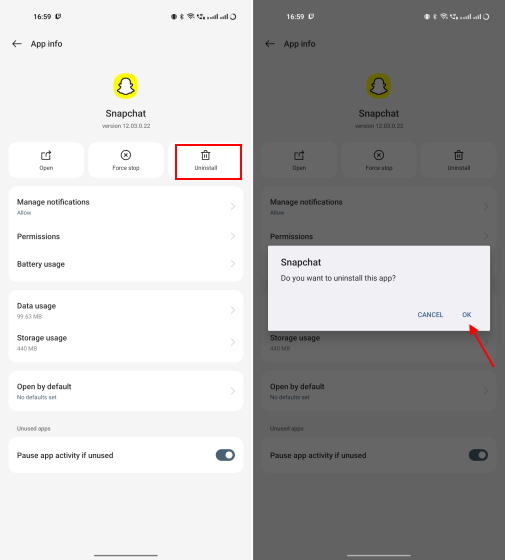
- Go to Settings > Apps & notifications > Snapchat.
- Tap the “Uninstall” button and confirm to delete the app.
Once you’ve removed the app, navigate to the iOS App Store or Google Play Store to reinstall Snapchat.
Read More: Snapchat’s New Context Cards and Their Subsequent Impact
Conclusion
Snapchat Notifications Not Working is a common concern among users, but there are several effective solutions at your disposal.
The strategies discussed provide a comprehensive approach to identifying and correcting the problem, so you can get back to engaging with your network without interruption.