
What is Snapchat Web and How Use Snapchat Laptop Web
Many people think of Snapchat as just a mobile app, but now you can access it on your laptop too. Snapchat Web brings your favorite features to a bigger screen, making chatting and sharing photos even more convenient. This article will show you how to use Snapchat Laptop Web effectively, helping you stay in touch with friends no matter where you are. Let’s dive into the features and tips that make using Snapchat on your laptop a breeze.
What is Snapchat Web?
Snapchat Web is the browser version of the popular social media app, allowing you to access Snapchat on your laptop or Chromebook. Launched in 2022, it initially catered only to Snapchat Plus users, but now it’s available to everyone. You can do most things you’d normally do on the app, like view stories, chat, and send Snaps. To use it, simply visit the Snapchat Web site or download the app from the Microsoft Store if you’re on a Windows device. It’s a great way to stay connected, no matter where you are.
All Snapchat Web Features
Snapchat for Web offers a variety of features that mirror the mobile app, making it a convenient option for users. Here’s a quick rundown of its key features:
- You can message friends, reply to messages, and view their Snaps right from your browser.
- It works even when your phone isn’t connected to the internet, allowing you to stay connected.
- You can easily watch friends’ stories displayed above the chat screen.
- You can conduct voice and video calls directly from the chat window without needing your phone.
- You can use your laptop or computer’s webcam to share Snaps and stories seamlessly.
- You can enjoy all your favorite Snapchat filters just as you would on the app.
- Discover content by just watching entertaining Discover videos via a dedicated section on the right side of the screen.
- The platform prevents screenshotting of chats, ensuring a level of privacy in your conversations.
How to Sign Up on Snapchat Web
To sign up for Snapchat on the web, follow these easy steps:
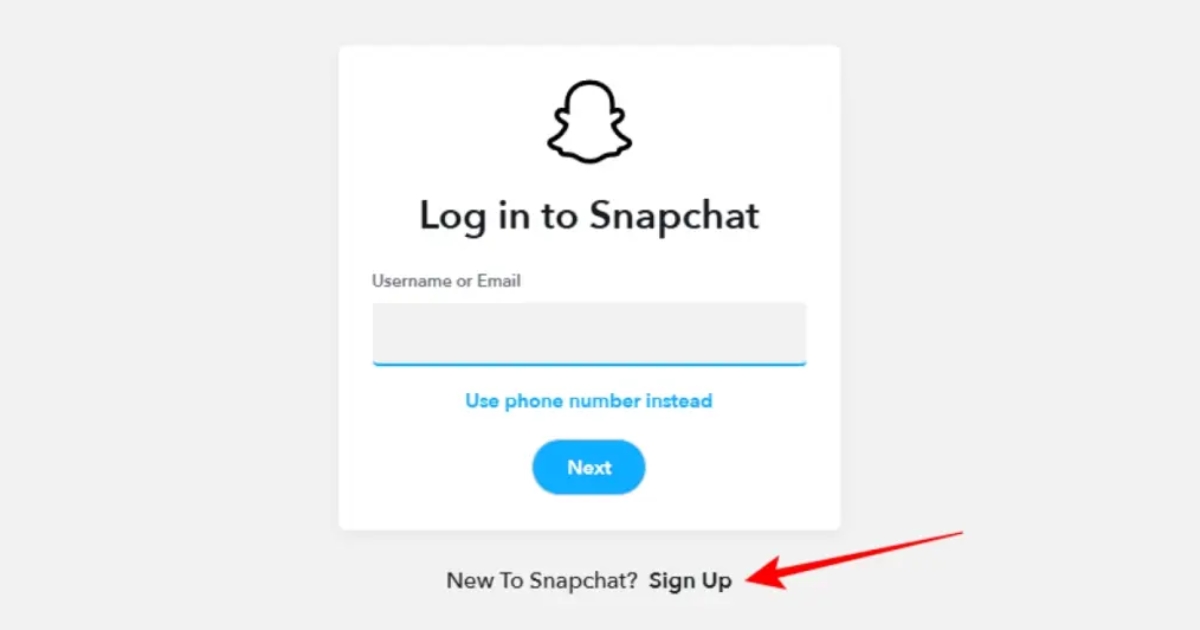
- Visit the Website: Open your desktop web browser and go to the Snapchat website.
- Click on “Sign Up”: Look for the “Sign Up” option and click on it.
- Fill Out Your Info:
- Enter your name and birthday.
- Choose a unique username and create a password.
- Provide Your Email: Enter your email address that you can access, then click “Next”.
- Check Your Email: Snapchat will send a 6-digit confirmation code to your email.
- Enter the Confirmation Code: Input the code on the Snapchat web page and click “Next”.
And that’s it! You’ve successfully created a Snapchat account on the web. Enjoy snapping.
How to Log In to Snapchat Web
Logging into Snapchat Web is easy! Just follow these simple steps:

- Open Your Browser: Go to the Snapchat website using your browser (like Chrome).
- Enter Your Credentials: Input your username or email. You can also use your phone number.
- Enter Your Password: Type in your Snapchat password and click “Next.”
- Get the Code: Check your email or phone for a six-digit verification code.
- Allow Access on Mobile: If you get a notification on your phone asking, “Are you trying to access Snapchat from a browser?” tap “Yes.”
That’s it! You’re all set to enjoy Snapchat on your computer.
How to Use Snapchat Web
After logging into Snapchat Web, let’s explore its features.
- If you’ve used Snapchat before, the layout should feel similar.
- The interface includes the same key components as the app.
- Elements are displayed over a larger screen, allowing you to view multiple pages simultaneously.
How to Send a Snap on Snapchat Web
Here are some steps on how to send a Snap on Snapchat Web:
- Log In: Start by logging into your Snapchat Web account.
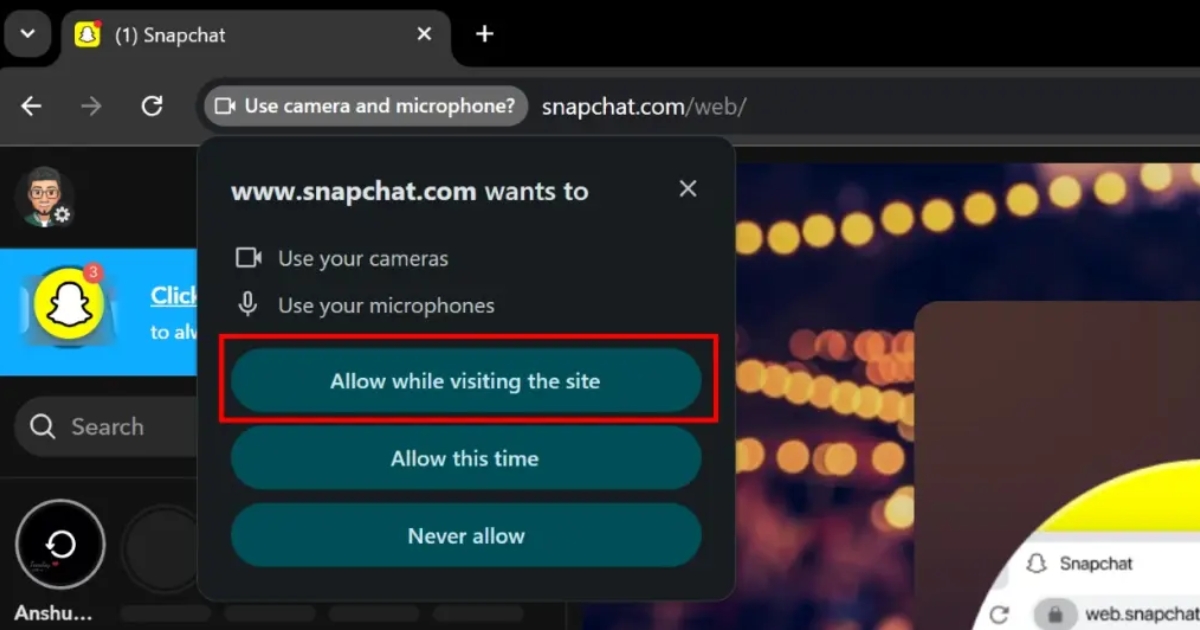
- Access the Camera: Once on the homepage, click the large camera icon to launch the camera feature.
- Grant Permissions: Make sure to allow the website permission to access your webcam to take photos.
- Choose a Filter: Browse through the different filters available and select the one you like.
- Take a Snap: Click the shutter button to capture your Snap. Note that holding the button won’t record videos on Snapchat Web.
- Send Your Snap: Click on “Send to” and choose the contact you want to share your Snap with.
How to Open Spotlight on Snapchat for Web
To open Spotlight on Snapchat for Web, follow these simple steps:
- Go to the Snapchat for Web homepage.
- Move your cursor to the right side of the screen.
- Look for the Spotlight button that will slide out from the right.
- Click the Play button to open the Spotlight feed.
- You can scroll up and down to see different Snaps in the feed.
- When you’re done, click the arrow at the top to close the Spotlight section.
How to View Friends’ Stories on Snapchat Web
To view your friends’ stories on Snapchat Web, follow these easy steps:
- Open your web browser and navigate to the Snapchat Web homepage.
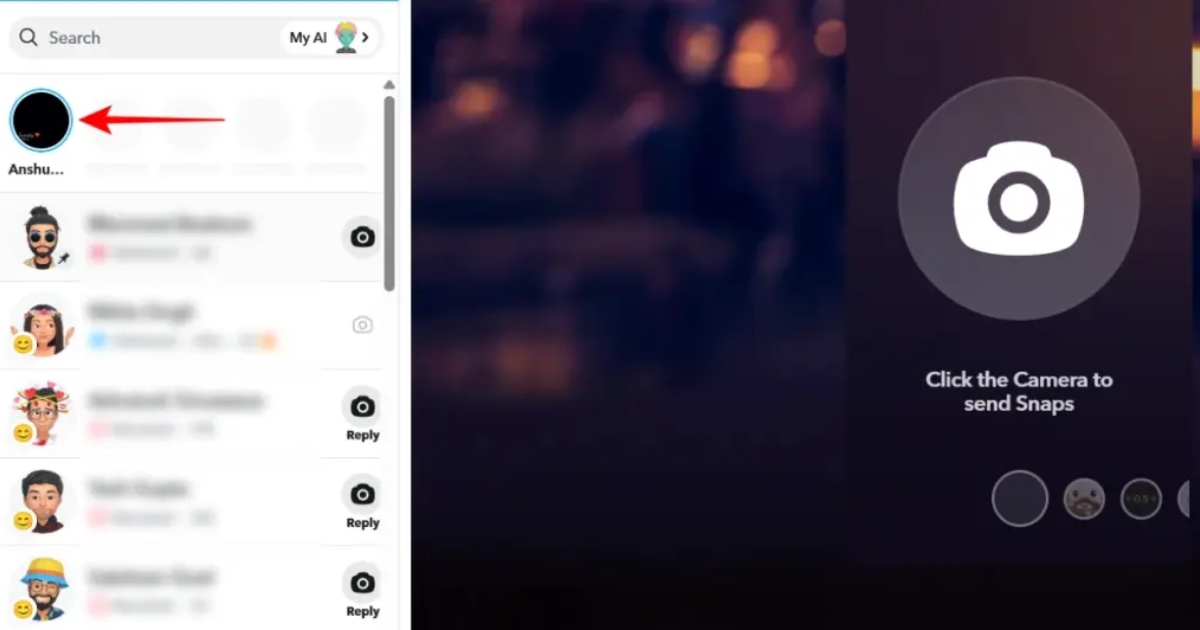
- Look for the circle icon at the top left side of the page, just above your chat list. This is where you’ll see your friends’ stories.
- Click on the circle icon to open any of your friends’ stories.
- If you want to reply to a story, use the comment box that appears below the story.
How to Open My AI in Snapchat Web
To open My AI on Snapchat Web, follow these simple steps:
- Start by logging into your Snapchat account on the web.
- Look for the search bar on the left side of the screen.
- Select the My AI option from the search results. This will open a chat window.
- You can begin your conversation with My AI right away!
- When you’re finished chatting, just click the arrow at the top of the window to close it.
How to Add Friends on Snapchat for Web
To add friends on Snapchat for Web, you’ll follow these simple steps:
- Open your desktop browser and head over to Snapchat Web.
- Look for the add friend icon at the top of the left side menu on your homepage.
- Click on the “Add” button to see all your pending friend requests.
- Click on “Accept” next to the friend requests you want to add.
How to Place a Voice or Video Call on Snapchat Web
Placing a voice or video call on Snapchat Web is super easy and a great way to connect with friends. Log in to Snapchat Web and navigate to the chat with the friend you’d like to call. At the top of the chat, you’ll see icons for voice and video calls on the right side. Just click on the one you want to use!
Once you’re in the call, you have some handy options. You can easily turn your microphone or camera on and off as needed. There’s even a feature to share your screen if you want to show something to your friend. When you’re done with the call, just hit the red “Hang Up” button at the top, and you’ll be all set!
How to Share Images with Friends on Snapchat Web
- Start by logging into your Snapchat account on the web.
- Navigate to the chat of the friend you want to share an image with.
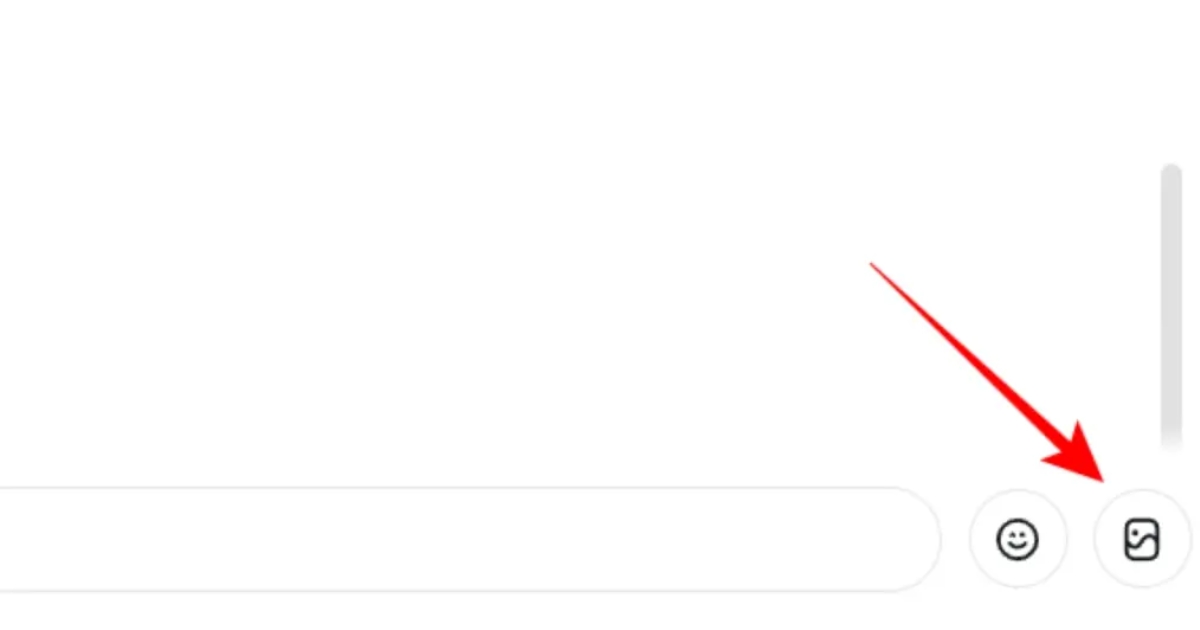
- In the bottom right corner of the chat window, you’ll see an image icon. Click on it.
- A file manager will pop up. Choose the image you want to share from your computer.
- After selecting the image, hit the blue arrow button to send it to your friend.
How to Manage Notifications on Snapchat Web
Open Snapchat Web and go to the chat of the friend whose notifications you want to silence. Once you’re in the chat window, just click on their name at the top. This will bring up options for that conversation.
Next, click on “Message Notifications.” You’ll see several options here. If you want to mute all notifications from that friend, simply select the “Silent” option. This way, you won’t be disturbed by their messages while you’re trying to stay focused.
How to Delete Chats in Snapchat Web
- Open the chat you want to remove on Snapchat Web.
- Click on your friend’s name at the top of the chat.
- Choose “Delete Chats.”
- Pick an option: “After Viewing” or “24 Hours After Viewing.”
- Click “Clear from Chat Feed” to fully erase the chat and its history.
How to Install Snapchat Web Shortcut on Windows and Mac
To install a Snapchat Web shortcut on your Windows or Mac desktop, log in to Snapchat Web. Once you’re logged in, click on your profile icon located in the top left corner. You should see an option labeled “Create Desktop Shortcut.” Click on that, and a pop-up will appear near your browser’s address bar. Simply click “Install” to create the shortcut.
After the installation, you’ll find the Snapchat Web icon on your desktop. Just double-click it, and Snapchat Web will open in a new browser window for easy access.
If you’re using Windows, you can also install Snapchat Web directly from the Microsoft Store, where it offers the same experience as the shortcut. This way, you can quickly access your favorite snaps without having to log in each time.
Conclusion
Snapchat Web brings a fresh perspective to the way you interact with your friends and content by allowing you to How Use Snapchat Laptop Web efficiently. It’s all about convenience and accessibility, letting you stay connected while working or relaxing on your laptop.
By signing in through your web browser, you can enjoy a range of features, including messaging and story viewing, without needing your phone. Embrace this new functionality and see how it complements your social media experience.
FAQ’s
What can you do on Snapchat Web?
On Snapchat Web, you can send and receive messages, view your friends’ stories, and chat in real time. It’s a great way to stay connected even when you’re not on your phone!
Can you half swipe on Snapchat Web?
No, you can’t half swipe on Snapchat Web. The half swipe feature is only available on the mobile app, allowing you to peek at messages without opening them fully.
Can I manage my profile in Snapchat for Web?
Yes, you can manage your Snapchat profile on Snapchat for Web. This includes updating your display name, viewing your friends list, and changing your privacy settings directly from your browser.
How is Snapchat Web different from the Snapchat app?
Snapchat Web allows you to access some of Snapchat’s core features on a desktop, making it easy to chat and view Snaps without your phone. The Snapchat app is designed primarily for mobile use, offering a wider range of features like creating Stories and using filters.