

How to Change Your Voice on Snapchat (All Methods & Pro Tools)
Introduction
There are many ways you can change your voice on Snapchat, not just one. It can be as simple as a quick in-app filter or highly advanced, professional-grade tools. If you want to find out how to change voice on Snapchat, this guide has all the methods explained in an easy-to-understand and usable manner.
We’ll begin with Snapchat’s own voice filters for recorded snaps and then go on to external editors for post-production voice changes. You will also get to know why voice filters don’t work during live calls, how real-time voice changers get around this problem, and how pro creators get studio-quality voiceovers.
Method 1: Using Built-In Snapchat Voice Filters
Snapchat has integrated voice-changing effects that enable users to enjoy and dramatically transform their voices without requiring the download of any other apps. Rather than a single, post-recording, universal vocal modulator, Snapchat employs voice-activated lenses that add the effects in real-time as the recording is made. These in-built features are ideal for quick, spontaneous content and are most suitable for Stories or direct snaps.
Steps to use built-in Snapchat voice filters:
Step 1. Launch the Snapchat app and tap the Lens icon next to the capture button to pull up the lens carousel. Tap the Explore button to open the entire Lens library.
Step 2. Insert words like voice filter, voice changer, robot voice, or deep voice in the search bar. Pick a lens that offers voice effects clearly.
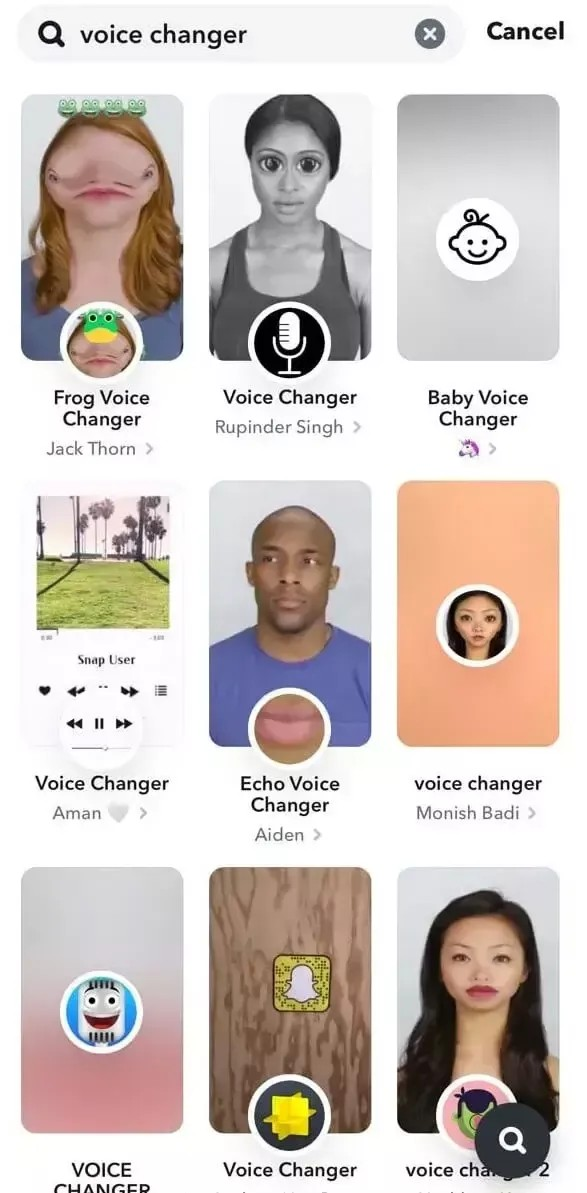
Step 3. Say something and record a video Snap as the voice effect will be synced with your voice in real time. Check the Snap and then save it or send it to your Story or chats.
Method 2: External Video Editors for Post-Production Voice Change
When it comes to having greater control over the audio of your Snap, external video editors such as Filmora are equipped with powerful voice-changing features. By using Filmora, you can not only edit your Snapchat videos that have been saved but also apply different voice effects, change pitch and speed, and produce top-notch audio that is beyond the capability of Snapchat’s native filters. If you are a user who is looking for finished results or different voice variations before uploading your content, then this method is just right for you.
Step 1. Record your video Snap in Snapchat and save it to your device. Open Filmora and import the saved video into a new project.
Step 2. Select the video on the timeline and go to “Audio > Sound FX”. Browse Filmora’s library of voice effects.
Step 3. Alternatively, tap on “Record” to add a voice-over. Tap on “Voice Effects” and choose from Chipmunk, Robot, Deep Voice, or more effects.
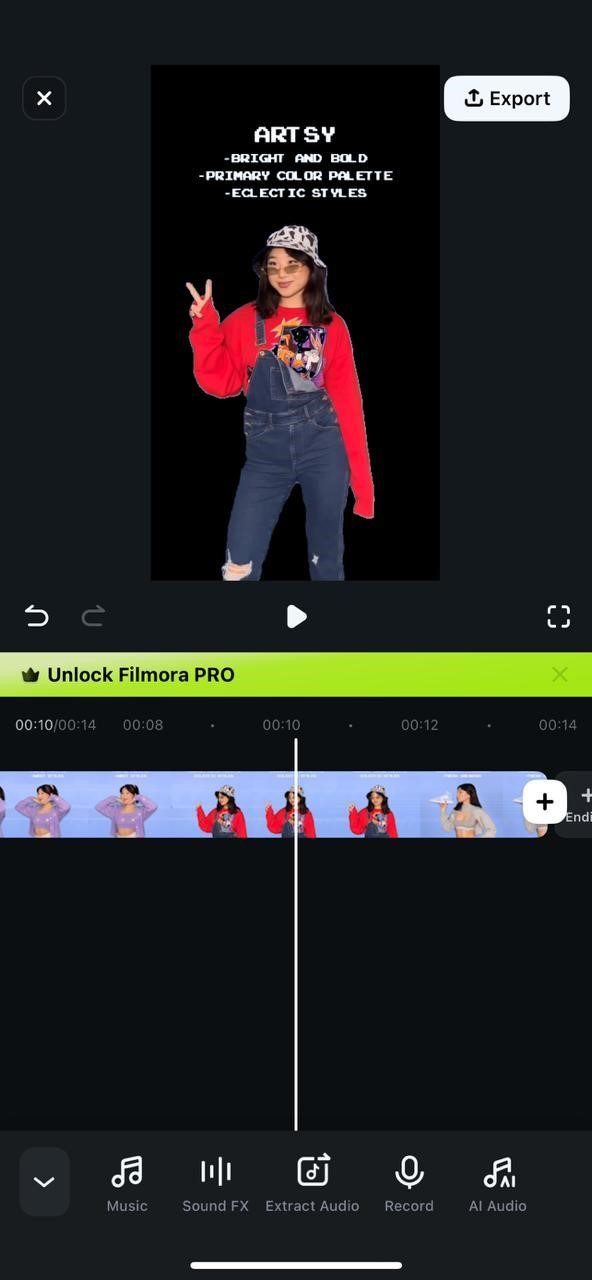
Step 4. Preview the edited video to ensure the voice effect sounds as intended. Export the final video from Filmora and re-upload it to Snapchat to share with friends or post to your Story.
Advanced Voice Customization: Real-Time & Professional Solutions
The Live Call Limitation: Why In-App Filters Don’t Work
Filters on Snapchat that use voice as an input are aimed only at recorded video Snaps. Simply put, Snapchat does not permit the use of these filters during live calls or voice chats. The technical matter is very straightforward: the app can only add visual or audio effects to the already recorded material, but it can’t do this to live audio streams. Therefore, if you want to change your voice live, Snapchat’s built-in features won’t do the trick for you.
Advanced Workaround: Real-Time Voice Changing (PC/Emulator)
In the case of real-time voice modification, the answer is a desktop application that generates a virtual microphone. If you are using an Android emulator or PC for Snapchat, this virtual microphone serves as the source of the modified audio, making it possible to apply voice effects live. With this method, one can enjoy voice filters on live calls, streams, or video chats, hence a degree of personalization that Snapchat’s native features can’t offer.
Featured Tool: EaseUS VoiceWave
EaseUS VoiceWave is a professional AI voice changer that is capable of working in real-time and is an excellent product for gamers, content creators, streamers, or anyone who wants to modulate their voice with high-quality effects. It provides users with realistic voice conversion and extremely low latency so they can change pitch, tone, and timbre on the fly during voice calls, recordings, or streaming sessions.
Loads of voice effects and soundboard sounds help make it a fantastic item for gaming, live-streaming, online chatting, and content creation. Moreover, an AI-powered noise cancellation technology results in crystal-clear, studio-grade audio. As a great partner for real-time voice solutions on PC and Windows 10 & 11 compatible, EaseUS VoiceWave is a perfect fit.
Key Features:
- Real-time voice transformation: Enjoy the real-time application of voice effects at an extremely low delay, perfect for Valorant and other fast-paced games.
- Large library: More than 200 voice effects and over 300 soundboard effects for games, live streams, or roleplays.
- Professional sound quality: An AI noise reducer cleans background noise, making your voice clear as if it’s from a studio.
- Super flexible: Connect with Discord, Zoom, Twitch, TikTok Live, OBS, etc.
- Multi-use: Perfect for online gaming sessions, live streaming, chatting online, and audiovisual post-production.
- Customizable voice effects: You can change pitch, tone, and timbre to your liking, making your voice modulations very personal and unique.
- Windows 10/11 support: It is perfectly compatible with the latest PC configurations to ensure seamless performance.
- User-friendly interface: Easy to install, fast effect picking, and straightforward real-time voice application.
The Pro Voiceover Trick: How to Add Custom, Polished Audio to Any Snap
Those creators who want to have extreme control over the content they post on Snapchat should consider recording a separate high-quality voiceover. This method grants you the ability to produce professional and highly personalized audio that is not dependent on Snapchat’s set of filters. You can use a desktop computer application or a mobile device recording tool to make a flawless voice track, which you can then apply with different effects and coordinate perfectly with your video Snap to get a professional finish.
Producing clean voice audio:
To have a clear and noise-free voice audio, firstly, it is wise to either buy an external microphone or a recording app. Secondly, the place in which the recording is done should be quiet, and the background noise should be at a very low level if you want to get the best result.
Editing for specific character voices:
You can alter the pitch, tone, and speed via software after the recording has been made to match the character or effect that you wish to convey. Through the use of EaseUS VoiceWave or a mobile audio editor, you can create genuine, engaging, or serious voices.
Layering and syncing audio onto the Snap:
First, take your silent video Snap into an editor and then extend the track of your voiceover. Make sure that you have synchronized the audio and the visual elements so that it appears the character in the video is speaking and the timing is accurate. You can then export the Snap and show it to your audience for a professional, immersive experience after the final tweaking.
Troubleshooting and Fixing Common Audio Issues
There are times when Snapchat’s voice filters won’t show up or work correctly. App settings, device restrictions, or small technical issues might cause this to happen. Check out this guide, which covers the most typical troubleshooting steps and solutions to the problem of we can help you get your voice effects working again:
App/OS Version Check:
Using outdated versions of Snapchat or your phone’s operating system may result in incompatibility. It is always advisable to verify the version of your Snapchat app and iOS/Android OS to ensure that you have the most recent one and that you can, therefore, avail of all the voice filter features.
App Permissions (Mic/Storage):
The voice filters can only be enabled if they have access to your microphone and storage. See if Snapchat is allowed to record audio and save files in your device settings. The filters may not appear or might not be applied to your Snaps if you don’t grant these permissions.
The Speaker Icon Error (“Hold vs. Tap”):
Some devices only allow you to use voice filters after you press and hold the speaker icon once you have recorded a video Snap. The feature might not work if you just tap. Do both actions so you can make sure that you are doing the right one according to your device.
Clearing Snapchat Cache/Storage:
Corrupted temporary files that have been stored prevent voice filters from being able to load. To clear cache, on Android, open Settings > Apps > Snapchat > Storage > Clear Cache. If you are on iOS, go to Snapchat’s settings > My Privacy and Data > Clear Data > Clear Cache. This will fix most of the major issues hidden from the user.
Muffled Audio Fix (Checking covered microphones on iPhone/Android):
Is your microphone covered by a case, screen protector, or something else, so that the sound is muffled and filters are applied incorrectly? Clean out the microphone area and get rid of any obstacles to make sure that the sound is captured clearly for voice effects.
Conclusion
Changing your voice on Snapchat is now very easy with the help of a combination of built-in filters, external editors, and professional tools. You can pick from quick, fun effects using Snapchat’s native voice-enabled lenses, polished post-production edits with Filmora, or real-time transformations using EaseUS VoiceWave; thus, you have a tool for each of your creative levels.
Pro techniques such as recording separate voiceovers can go even further in your content, giving you total control over audio quality and style. Just follow the steps given in the troubleshooting guide, and it will be easy for you to solve your common problems and use your voice effects without any trouble. Check out these tricks and keep your Snaps always fun, interesting, and uniquely your own.