How to Cast Netflix to TV Without Hassle? (2025 Easy Guide)
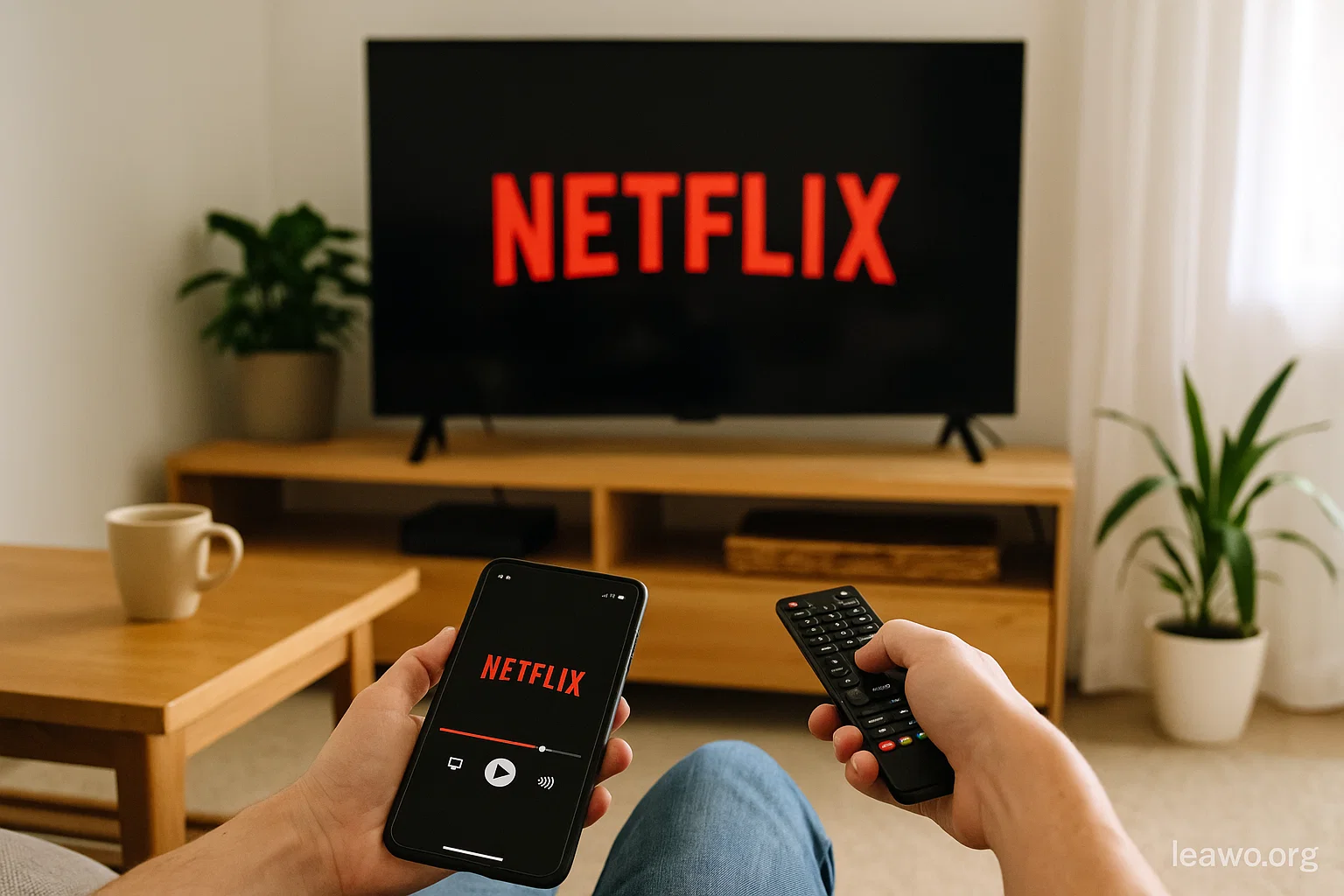
Streaming Netflix on a TV offers a far better viewing experience than watching on a small phone or laptop screen. Whether you’re binge-watching your favorite show or enjoying a movie night with family, casting Netflix to your TV is one of the easiest ways to upgrade your setup. Yet, many users still struggle with connection issues, missing cast icons, or unsupported devices. So—how to cast Netflix to TV smoothly and without headaches?
This guide covers everything you need to know, including requirements, step-by-step casting methods, what to do when the cast icon is missing, and how to use downloadable videos as a workaround.
Requirements for Casting Netflix to TV
Before learning how to connect Netflix to TV from phone or laptop, make sure you meet the basic requirements. Casting only works when the right devices and settings are in place.
You’ll Need:
- A TV with built-in casting support (e.g., Smart TV, Google TV, Android TV)
- OR a streaming device:
- Chromecast
- Roku
- Amazon Fire TV
- Apple TV (but Netflix does not support AirPlay)
- A phone or laptop with the Netflix app or browser
- Both devices connected to the same Wi-Fi network
- The latest version of the Netflix app
Notes
- Netflix officially does not support casting via AirPlay.
- Some older TVs may require an external device such as Chromecast.
- You must have an active Netflix subscription.
If everything above is ready, you’re set to start casting.
How to Cast Netflix from Laptop to TV?
If you’re wondering how to cast Netflix from laptop to tv, the process is straightforward. Laptops can cast using Chromecast-enabled browsers, HDMI cables, or built-in casting features—depending on your setup.
Method A: Cast via Google Chrome (Most Common)
- Open Google Chrome on your laptop.
- Go to Netflix and sign in.
- Click the three-dot menu in the upper-right corner.
- Select Cast.
- Choose your TV or streaming device.
- Play the Netflix video—your TV will display it instantly.
Method B: Use a Streaming Device App
If your TV uses Roku, Fire TV, or Google TV:
- Make sure your laptop and TV share the same Wi-Fi.
- Open the cast or mirroring feature on your device.
- Start streaming Netflix on your laptop.
Method C: Use an HDMI Cable
If casting isn’t available:
- Connect your laptop to the TV via HDMI.
- Switch your TV to the proper HDMI input.
- Play Netflix on your laptop—the TV mirrors the display.
This is the most reliable method when Wi-Fi casting fails.
How to Cast Netflix from Phone to TV?
For those asking how to cast netflix from phone to tv, both Android and iPhone users can cast as long as the device supports it. AirPlay is not supported, but native casting and Chromecast functionality work perfectly.
Method A: Cast via Netflix App (Android & iOS)
- Open the Netflix app on your phone.
- Tap the Cast icon in the top-right corner.
- Select your TV or casting device.
- Choose the movie or show and play it.
Method B: Cast via Google Home App (Android)
If the cast button doesn’t appear:
- Open Google Home.
- Select your Chromecast or Smart TV.
- Tap Cast my screen.
- Start Netflix—your TV mirrors your phone.
Method C: Mirroring on iPhone (TVs With Built-in Casting Support)
Since Netflix doesn’t support AirPlay:
- Use your TV’s built-in casting feature instead
- OR use Chromecast/Google TV
iPhone users can still cast easily as long as the TV supports standard casting protocols (not AirPlay).
How to Cast Netflix to TV When the Cast Icon Is Missing?
Sometimes, even when everything seems right, the cast icon disappears from the Netflix app. This can happen due to:
- Network issues
- App glitches
- Unsupported TV models
- Netflix app version issues
- Router or Wi-Fi isolation
If you still can’t cast, there’s a reliable workaround: Download Netflix videos first and then cast them using third-party TV casting apps.
Why This Works
If streaming doesn’t work, you can rely on downloaded videos stored on your device. Netflix has its own download button but comes with limits such as:
- Netflix offline playback limits
- Titles expiring after a set time
- Restrictions on how many times certain content can be downloaded
- Content unavailable for download due to licensing
To avoid these restrictions, you can use third-party tools to download videos freely and cast them with any compatible app.
Use CleverGet to Download Netflix Videos
To cast videos without streaming worries, you can use CleverGet to download Netflix content in high quality. After saving the videos locally, you can play them on your TV using any casting or DLNA app.
How to Use CleverGet to Download Netflix Videos
- Install CleverGet on your device.
- Open it and navigate to Netflix within the built-in browser.
- Log in to your Netflix account.
- Select your desired movie or show.
- Choose the resolution and hit Download.
- After downloading, open a compatible TV cast app (DLNA, Chromecast, Roku players).
- Pick the downloaded file and cast it to your TV.
Benefits of Using Downloaded Videos for Casting
- Works even without Wi-Fi
- No buffering or lag
- You can play videos on any TV, old or new
- You bypass Netflix’s offline download limitations
- You gain permanent access to the video (depending on local laws)
This is the perfect solution when Netflix’s built-in casting feature doesn’t cooperate.
FAQs
1. Why can’t I see the cast icon on Netflix?
Possible reasons include:
- Devices not on the same Wi-Fi
- Old app version
- Unsupported TV
- Router network isolation
- Temporary Netflix bug
Restarting your devices often helps.
2. Does Netflix support AirPlay?
No. Netflix officially discontinued AirPlay support due to device-identification limitations.
3. What is the easiest way to cast Netflix from a laptop?
Using Chrome’s Cast feature is the simplest and most consistent method.
4. Can I cast downloaded Netflix videos?
Yes. If downloaded outside Netflix’s app (e.g., using CleverGet), you can cast them using DLNA players, Chromecast apps, or media servers.
5. Why does Netflix have offline playback limits?
These limits are due to:
- Licensing restrictions
- Content protection policies
- Download quotas
Conclusion
Casting Netflix to your TV doesn’t have to be complicated. Whether you’re learning how to cast Netflix to TV, exploring how to cast Netflix from laptop to tv, or trying to figure out how to cast Netflix from phone to tv, the process is usually fast and simple—assuming your devices are compatible and connected properly.
If the cast icon ever goes missing or streaming becomes unstable, downloading videos via CleverGet gives you a powerful workaround. You can enjoy high-quality Netflix content on any screen, without buffering or app limitations.
With these methods, you can enjoy Netflix on the biggest screen in your home—without hassle and without frustration.