
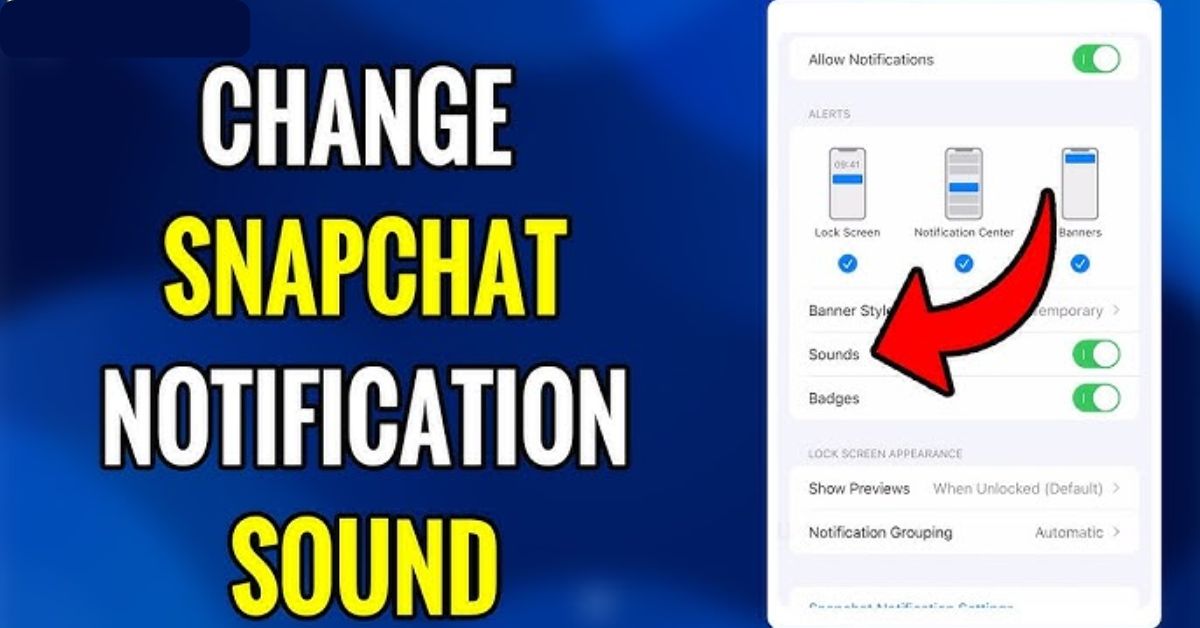
How To Change Snapchat Notification Sound | Truth Here
Imagine scrolling through your phone and hearing a notification sound that truly resonates with your personality.
Understanding how to change Snapchat notification sound can transform your engagement with the app, allowing you to stand out in a sea of Snapchat planets and Snap Planets.
Customizing your notification tones isn’t just about aesthetics, it’s about making your online interactions more enjoyable. By following this guide, you’ll learn how simple it is to give your Snapchat notifications a fresh twist!
How To Change Snapchat Notification Sound
Changing your Snapchat notification sound can transform your interaction experience, making it more personalized and enjoyable.
Method 1: Change Snapchat Notification Sound from Chat Screen
Imagine never confusing your friend’s latest Snap with a mundane message from Team Snapchat again. The Snapchat app allows you to customize your notification sounds on a per-chat basis, ensuring that you’re instantly aware of who’s reaching out. To get started,
- Simply long-press on the chat that you want to tailor.
- From there, navigate through the Chat and notification settings to find the Notification settings tab, where the magic happens.
- This feature not only personalizes your experience but also enhances engagement, making conversations feel more dynamic.
- Choosing the perfect sound can truly elevate your interaction.
- Whether you opt for something playful, like a quirky tone, or something more subtle, your choice reflects your personality.
Method 2: Choose Alert Tone from Snapchat+ Menu
Customizing your notification tones in Snapchat+ adds a personal touch to your messaging experience.
- Tap your Bitmoji in the top-left corner to open the Snapchat+ menu.
- Find the “Custom Notification Sounds” option.
- Choose unique sounds for individual friends to easily recognize messages.
- Assign cheerful tones for close friends and quirky sounds for casual contacts.
- This customization makes your notifications more enjoyable and reflects your relationships.
Method 3: Pick Notification Sound from Android Settings
If you’re looking to personalize your Snapchat experience without needing a Snapchat+ subscription, adjusting the notification sound through your Android settings is a fantastic option.
- Simply navigate to the Settings app, head to Notifications, and then App Notifications.
- From there, locate Snapchat and select the specific notification category that resonates most with how you want to be alerted, be it Snaps or Chats.
- Selecting a unique sound can enhance your experience, making every notification more enjoyable and distinctive.
- Don’t forget to save your changes,this simple step ensures that your new sound settings will take effect immediately, transforming your Snapchat alerts into something truly personalized.
Conclusion
Learning how to change Snapchat notification sound is a simple yet effective way to customize your Snapchat experience. With just a few taps, you can replace the standard notification sound with something that reflects your personality.
This small tweak can help you stay more engaged with your interactions on the platform. Whether you prefer something fun and upbeat or something more subtle, the choice is yours. Embrace the opportunity to make Snapchat yours; go ahead and change your notification sound now!
FAQs
Is it possible to set a custom notification sound for Snapchat?
Yes, you can select a custom sound from your device’s notification settings, but Snapchat primarily uses its default sounds.
Will changing my notification sound affect other apps?
No, changing the notification sound for Snapchat will only affect Snapchat notifications and not other apps on your device.
Do I need to restart Snapchat to apply new notification sounds?
No, changes to notification sounds take effect immediately without needing to restart the app.