How to allow camera access on Snapchat On Andriod and iPhone
Suppose you are trying to capture a fun moment on Snapchat and realize that your camera is blocked. Understanding how to allow camera access on Snapchat on Android or iPhone is essential for a seamless experience.
In this article, we’ll break down the simple steps to give the app permission to use your camera. You’ll learn what settings to adjust so you can get back to snapping in no time.
How to allow camera access on snapchat on Android
To allow camera access for Snapchat on your Android device, follow these simple steps:
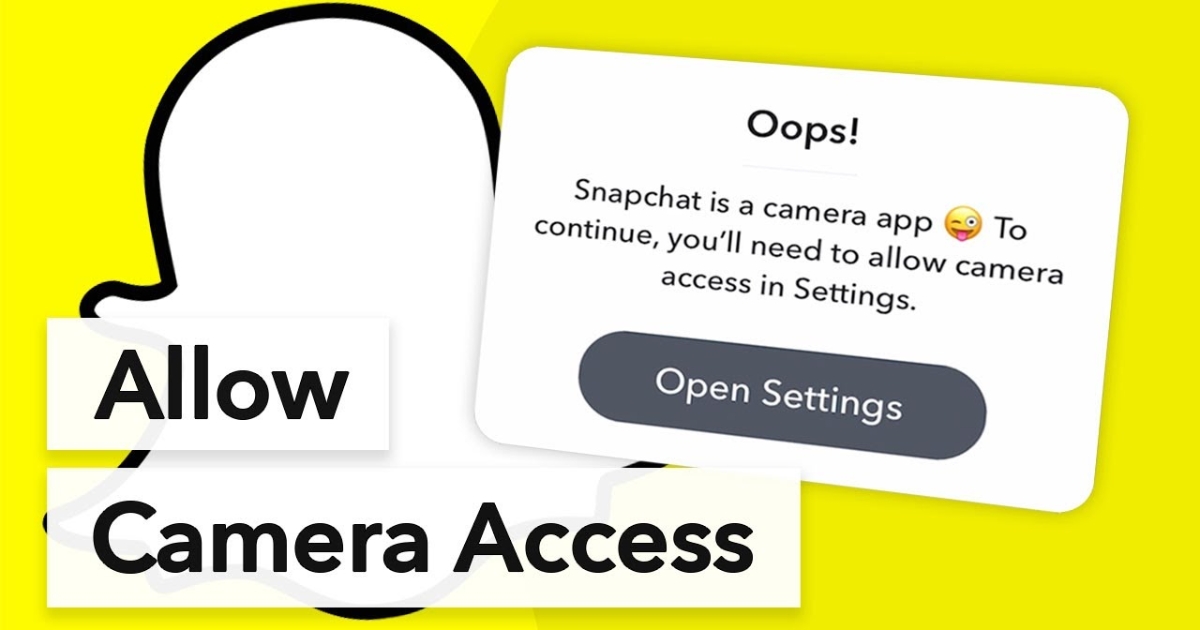
- Start by locating the “Settings” app on your Android phone. This app usually looks like a gear icon.
- Scroll down and tap on “Apps” or “Applications”. Here, you’ll see a list of all the apps installed on your device.
- Look for “Snapchat” in the list of apps. Tap on it to open the app settings.
- Go to Permissions: Once you’re in the Snapchat settings, find and tap on “Permissions.” This section shows what features Snapchat can access.
- Look for the “Camera” option. Tap on it and then select “Allow Only While Using the App.” This setting ensures that Snapchat can access your camera when you are actively using the app.
By following these steps, you can easily grant the necessary camera permissions, ensuring a smooth experience while using Snapchat. If you have any issues, double-check that your device’s software is up to date.
Read More: What Does NTH Mean On Snapchat?
How to allow camera access on iPhone
Here’s a simple guide to allow camera access on your iPhone for Snapchat:
- Start by tapping on the “Settings” app on your iPhone’s home screen.
- Scroll down until you see the “Privacy” option and click on it.
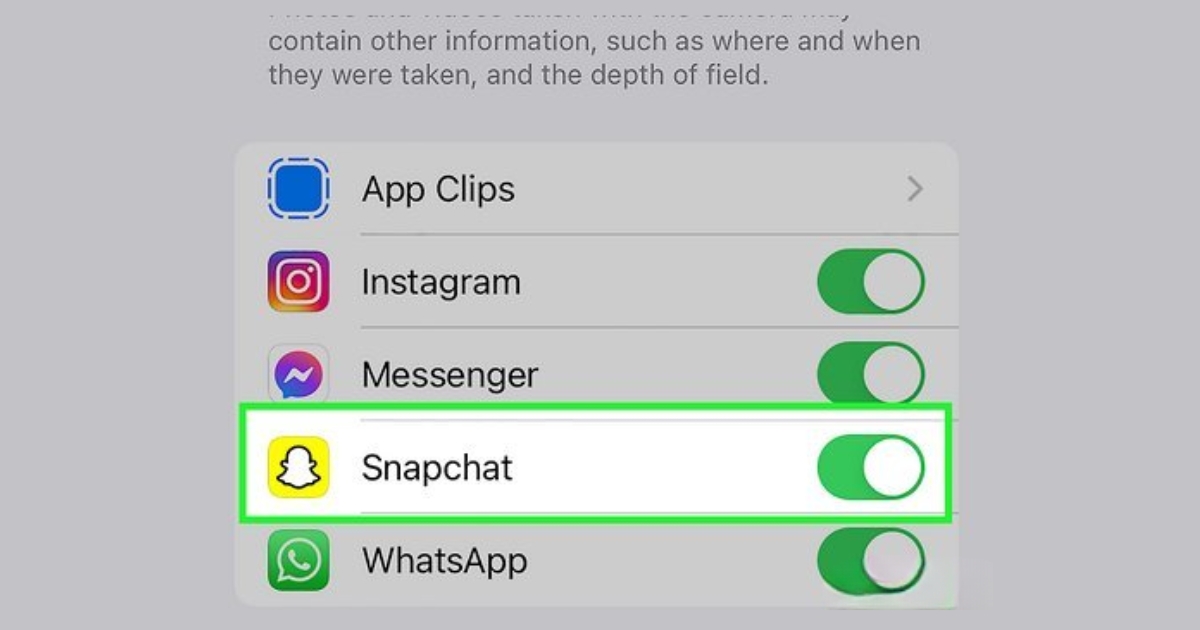
- Look for the “Camera” tab in the Privacy menu and tap on it.
- You will see a list of apps that can access your camera. Find “Snapchat” in this list.
- You’ll see a switch next to Snapchat. If it’s not green, tap the switch to turn it on. This allows Snapchat to access your camera.
After these steps, you should be ready to take pictures and videos on Snapchat without any issues. If it still doesn’t work, try restarting your iPhone and checking the permissions again.
Why is my Snapchat camera not working?
If your Snapchat camera isn’t working, here are some common reasons and easy solutions to help you troubleshoot the issue:
- Check for Updates:
- Ensure your Snapchat app is up-to-date. Go to your app store and check for any available updates.
- Similarly, check whether your mobile operating system is up to date. Outdated software can cause compatibility issues.
- Clear Background Apps:
- Close any unnecessary apps running in the background. Too many apps can slow down your device and affect Snapchat’s performance.
- Internet Connection:
- A slow or unstable internet connection can prevent the camera from working. Try switching from Wi-Fi to mobile data or vice versa and see if that helps.
- Restart Everything:
- Restart the Snapchat app first. Close it completely and then open it again.
- If that doesn’t work, reboot your device. This can clear up any glitches that may be causing the issue.
- Camera Permissions:
- Make sure Snapchat has permission to access your camera. Go to your phone’s settings, find Snapchat, and check the permissions.
By following these steps, you should be able to diagnose and fix the problem with your Snapchat camera. If none of these solutions work, consider reaching out to Snapchat support for further assistance.
Read More: Is Snapchat removing the Snapscore feature?
Final Thought
So, how to allow camera access on Snapchat on andriod or iphone is a straightforward process that can enhance your experience. First, visit your device’s settings and locate the Snapchat app. In the settings, check the permissions for the app and ensure that the camera option is active.
After completing these steps, you should have full access to the camera features in Snapchat. Take a moment to adjust these settings today, so you can capture and share moments easily.
Read More: What Does NWS Mean On Snapchat?
FAQ’s
How do I enable camera permissions on Snapchat?
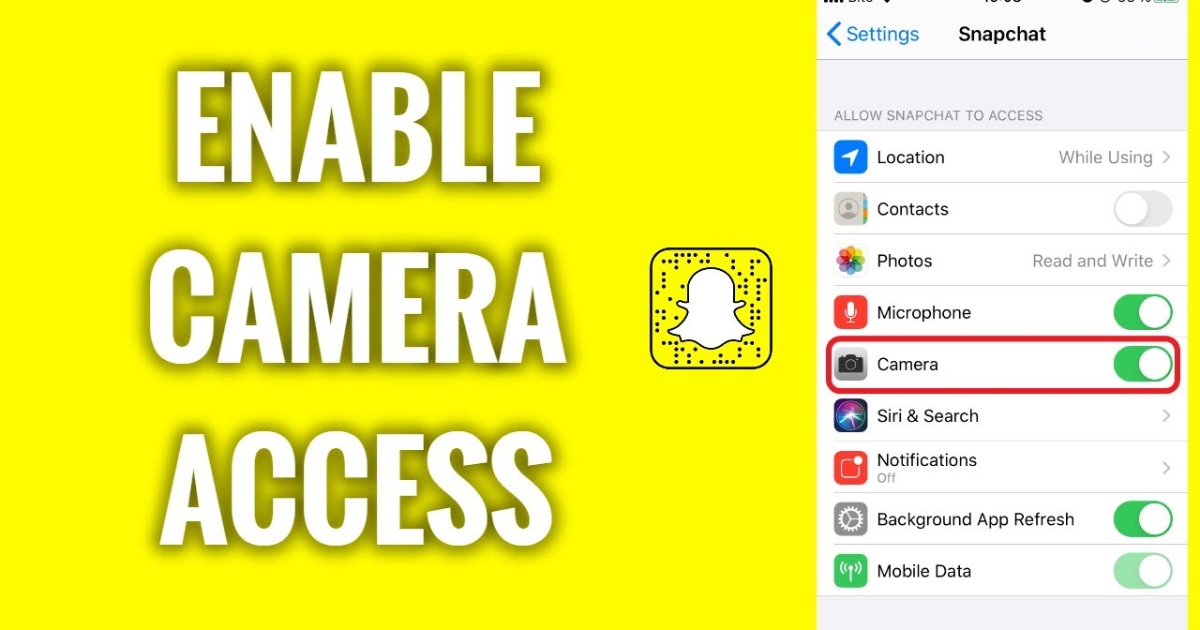
To enable camera permissions for Snapchat on your iPhone, go to Settings, scroll down to Snapchat, and ensure that the camera toggle is turned on.
If you’re using an Android device, navigate to Settings, then Apps, select Snapchat, and check that camera permissions are granted. Once that’s done, restart the app, and you should be all set!
How do I enable camera access on Snapchat?
To enable camera access on Snapchat, start by going to your device’s settings. For iPhone, navigate to Settings > Snapchat and toggle the Camera option on. For Android, head to Settings > Applications > Snapchat > Permissions, then enable Camera access.
Can Snapchat take photos and videos without permission?
Snapchat cannot take photos or videos without user permission. To ensure the app has access to your camera, check the settings on your device and make sure camera permissions are enabled specifically for Snapchat.
If you encounter issues, adjusting these settings should resolve the problem and let you use the camera seamlessly.
How to use Snapchat camera on Android?
To use the Snapchat camera on your Android device, first, open the app and grant it permission to access your Camera. If you encounter issues, go to Settings > Apps > Snapchat > Permissions, and ensure the Camera option is enabled. This should allow you to start snapping.