
How to do a ‘Boomerang’ on Snapchat| Quick Guide 2026
Snapchat’s ‘Boomerang’ feature can double your engagement in just a few taps. In a world where engaging content is king, learning how to do a ‘Boomerang’ on Snapchat can elevate your social media game dramatically.
This quick guide will walk you through the steps to create an eye-catching Boomerang, ensuring your snaps capture attention and keep your followers coming back for more.
Snapchat remains one of the leading social media platforms globally, boasting millions of active users who rely on the app for daily communication. Its unique ephemeral messaging system allows users to send photos and videos that disappear after a short period, enhancing real-time interaction and spontaneity.
A standout feature on Instagram is Boomerang, which creates short videos that play forward and then reverse, providing a fun and eye-catching effect. Users have embraced this tool, often incorporating it into their stories and posts to add dynamic content.
In response to this trend, Snapchat introduced its own version called Bounce. This feature allows users to create similar looping videos, enhancing the creative options available within the app. Since its launch, Bounce has quickly gained traction, drawing users in with its playful and engaging style.
Both platforms showcase how short, looping videos can enhance user engagement and creativity, reflecting the evolving landscape of social media communication.
If you want to make a ‘Boomerang’ on Snapchat, here’s how to do it.
How to make a Bounce on Snapchat
To make a Bounce video on Snapchat, you’ll just need to do as follows:
- Open Snapchat
- Hold the camera button to film a short video
- On the right side of the screen, tap the infinity icon until it says ‘Bounce’
- This should give your video the ‘Boomerang’ effect.
- After this, you can add extra options to your video like text or stickers, before sending it as normal.
How to Make a Bounce Video on Snapchat (4 Easy Steps)
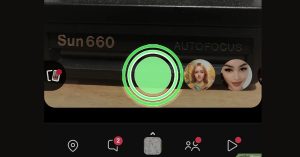
Step 1: Record Your Video
Open Snapchat and tap and hold the center circle button to record. Release your finger when you’re done.
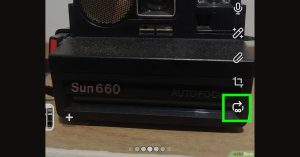
Step 2: Select the Bounce Option
On the editing screen, tap the overlapping arrows (Bounce icon) on the right side. Scroll through the loop options if needed until Bounce appears.
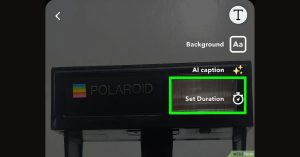
Step 3: Adjust the Duration
Drag the slider at the bottom to choose the part of the video you want to bounce. Only the selected section will play forward and backward.
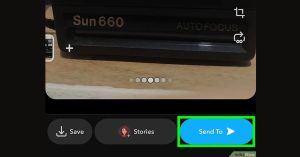
Step 4: Send or Save Your Snap
Tap Send To to share with friends, choose Story to post it, or tap the download icon to save it to your device.
Numerous users have utilized this effect to craft engaging narratives, and with the abundance of choices accessible in the app, many find themselves dedicating time to personalize their messages and tales.
If you want to learn more about how to use Snapchat, you can check out some of our other guides here:
Conclusion
In conclusion, creating a ‘Boomerang’ on Snapchat is a fun and engaging way to add some flair to your snaps. By using the reverse feature and capturing short video clips, you can entertain your friends and make your stories stand out.
Remember to experiment with different angles and movements to discover what works best for you. Whether it’s a playful dance or a quirky action, the possibilities are endless. So, grab your phone and start snapping; your next ‘Boomerang’ masterpiece awaits!
How Do I Create a Boomerang on Snapchat?
To create a boomerang, open the Snapchat camera, press and hold the record button to capture while moving the camera slightly, then release to create the looping effect.
What is The Bounce Feature on Snapchat?
The bounce feature allows you to create a reversed video effect, where the action plays forward and then reverses, creating a fun, looping clip.
How Can I Access The Boomerang Feature on Snapchat?
Access the boomerang by ensuring you are in video mode, then simply hold the record button for a few seconds until you get your desired clip.
Are There Any Special Settings For Composing a Boomerang?
No special settings are needed; just make sure to keep your phone steady while recording for a smooth loop.