
How to Speed Up Snapchat Videos: A Step-by-Step Guide
Introduction
One of the quickest and simplest methods of making your snaps livelier, fun, and visually appealing is to speed up a Snapchat video. If you intend to make a hilarious fast-motion video, showcase an activity in less time, or just fiddle around with Snapchat’s editing tools, the app provides you with built-in choices to change the video speed in a matter of seconds. Most people are aware that Snapchat has filters and some basic editing features; however, not so many people understand that it is very easy to alter the playback speed right in the app.
This tutorial will show you how to speed up a Snapchat video step by step—both capturing a new snap and modifying a saved one. Ultimately, you will be able to do speed effects at will and take your content to the next level as if you were a professional.
Beyond the Basics
The Camera Roll Conundrum
One major aggravation that users experience is the fact that the inherent speed controls in Snapchat don’t interact very well with videos that have been imported from the Camera Roll of the phone. There are times when the speed filter is not visible, the app compresses the clip, or the effect is induced in a non-uniform manner, because of which the operation seems to be more restricting than if it were a freshly recorded snap.
The best way to get around this is to change the video speed to the desired one before importing it into Snapchat.
Step-by-step guide: The external editor method
Step 1: Open CapCut and import your video
Use the CapCut app on your phone to open a new project. Find the video you want to speed up from your Camera Roll and put it in the timeline.
Step 2: Click “Edit” and then “Speed”
After the video is in the timeline for editing, click the bottom toolbar Edit. From the editing options, choose Speed to open the timing controls of CapCut.
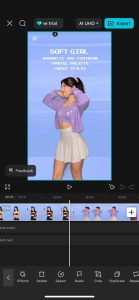
Step 3: Pick “Normal” and change the speed (0.5x to 5x)
If you want to keep the speed the same and just increase it for the whole video, use the Normal option. Move the slider to the speed you want—CapCut can be set anywhere from 0.1x (slower) to 100x (faster).

Step 4: Use “Curve” to create more advanced speed transitions
If you want to control the speed in a more creative way, switch to the Curve option. With this option, you can select the effects such as Hero, Montage, and more. These effects change the speed at different parts of the video and thus give it a more cinematic style of fast motion.

Step 5. Export
If you want to keep the speed changes, press Export to record the high-quality video with the changes on your device. After that, you can open Snapchat and simply drag & drop the pre-edited, high-speed clip from your Camera Roll.
Troubleshooting: “My Speed Filter is Missing!”
If your speed icons have disappeared suddenly, do not be bothered, since this issue is less rare than you imagine. However, Snapchat editing tools do not always work smoothly, especially right after updates, or if the cache has piled up, or if one is switching between recording modes. Take this comprehensive checklist to facilitate the problem-solving process and see which remedy works best for you:
Make sure the Snapchat app is updated to the latest version
Most of the time, when tools are not available, it is when the app version is outdated. Head to your device’s App Store or Play Store and look for the updates. When you install the newest version, you guarantee that all filters, including speed ones, are accessible and working properly.
Check if you are in the proper edit mode
Speed filters cannot be accessed from interfaces. Be sure that you have the clip open in Director Mode or Timeline Editor, where you get full creative controls from Snapchat. If you are in the simple preview screen, change the mode and give it another shot.
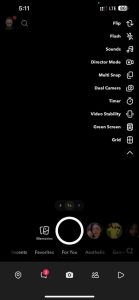
Delete Snapchat cache
Cached data, which accumulates gradually, may cause features to cease functioning or even to disappear. Go to Settings > Privacy Controls > Clear Data > Clear Cache. By doing this, it refreshes your app without removing your saved memories, and in most cases, those effects that are missing get back to you at once.

Make sure your video length and format are right
The speed filter may not come up in very short videos (less than a second) or extremely long videos. Moreover, certain formats that are imported may limit your editing options. Do the trimming by means of Snapchat or get your clip re-exported with a regular format (e.g., MP4) and then make another attempt.
Power off your device and turn it back on
The restart of your device is like a broom for the temporary faults in the system, which, in turn, causes the Snapchat tools not to load properly. Once the device is up and running, start Snapchat again, and try the speed filter.
It is also true that reinstalling an app can solve the problem when nothing else works, but most of the time, all the work done is enough to get back the speed filter.
Professional Editing & Audio Control
Recommendation: Advanced Speed Change with EaseUS Vocal Remover
Content creators wanting more accuracy than what Snapchat or mobile editors can provide will need to have advanced speed manipulation as their next step – a must, to make extreme time-lapses, cinematic sequences, or create polished social media content. The tools integrated in Snapchat limit the changes in speed to a certain speed, and thus, going further than that can result in distorted audio or noise being added. Hence, the use of a professional preprocessing tool in such a case is priceless.
Why use EaseUS Vocal Remover?
EaseUS Vocal Remover is essentially an AI-driven online tool that is made to simplify and upgrade the audio that is extracted from either the video or the audio files. It is compatible with basically any type of file—be it MP4, MOV, MP3, or WAV—which is why it is suitable for the sound engineers who want a better and more precise sound before putting the high-speed effects on.
However, the product in question is mainly a platform for audio with a focus, it nevertheless comes with the advanced features like a Pitch Changer, Noise Reducer, and the capability to accept video uploads of up to 1GB, thus allowing one to have the freedom to improve the sound quality without the necessity of producing a separate file or the original footage getting distorted.
How does this help before speeding up a video
If you want to speed up the playback of your video, first, you might want to put your video file on EaseUS Vocal Remover and:
- Use Vocal Remover to extract vocals from the music part of the track to ensure the clarity of the final clip when it is sped up.
- Use the Pitch Changer to change the pitch very slightly—this is very helpful if the audio is going to be fast and will sound unnatural.
- Use the Noise Reducer to remove a weak hiss or, for example, the sound of the wind or the environment that is going to be more noticeable at a higher speed.

By using EaseUS Vocal Remover to get the audio ready for the fast motion editing of your video in CapCut or any other software, you keep the sound quality intact and have a very nice result. With this workflow, even the most extreme speed changes will still look—and sound—like they are done professionally before you make the final upload to Snapchat.
Bonus tip: If you need clean background music or want to create karaoke-style content, load your file into the built-in acapella extractor; it will isolate the vocals in seconds and give you an instrumental track that is perfect for speed-up edits without muddying the voice line.
Pro-Tip: Mastering Audio for Speed-Up
When you speed up a video, the pitch of the sound changes automatically, which is why most of the time we get the “Mickey Mouse” effect, where voices become very high-pitched and sound strange. This sound becomes increasingly distorted as the playback speed is increased, especially in time-lapses or action clips. If you want to keep your content clean and professional, it is better to decide how you will handle the audio before you make your final edit.
Two simple solutions for cleaning audio
- Mute the Snap
The fastest and most dependable way is to merely mute the original audio. It is a crisp and clean method without any distorted sounds that can distract the viewer from the visuals. By a single tap, you can completely get rid of the problem of the pitch of the sound changing.
- Use a royalty-free song
Once the footage has been sped up, you may import the clip into Snapchat and utilize the music feature that is already there to put a high-energy track over the top. As another option, use an external editor to add royalty-free music if that gives you more creative freedom.
Conclusion
Making a Snapchat video faster is a great and simple idea to add more life, originality, and user-friendliness to your content. It doesn’t matter if you are speeding up your video with Snapchat’s in-app speed filters, with an imported clip using CapCut, or by an audio file through a professional tool like EaseUS Vocal Remover; you can have a perfect fast-motion video that looks like a pro did it.
You have come a long way from just understanding how to fix the issue of missing speed filters and learning how to master audio control. The right tools and workflow let you turn any dull video into a flashy, fast-moving Snap that will get you noticed.