How To Delete Snapchat Account | Check Now
Did you know that millions of users decide to delete their Snapchat accounts each year, often finding themselves overwhelmed by the app’s fast-paced updates and the endless Snapchat planets? If you’re among those considering this step, you’re not alone.
Whether you’re looking to take a break from the social media whirlwind or simply want to clear out your digital space, understanding how to delete Snapchat account is crucial.
In this guide, we’ll walk you through the straightforward process to disconnect from the Snap planets and reclaim your privacy.
How To Delete Your Snapchat Account
Deleting your Snapchat account is a straightforward process, whether you’re on Android, iPhone, or even the web.
Method 1: Delete Snapchat On Android Or iPhone
Deleting Snapchat from your device, whether it’s Android or iPhone, is a straightforward process.
- Start by opening the app and tapping your profile icon in the top left corner.
- From there, navigate to the gear icon at the top right to access settings.
- Under the “My Account” section, you’ll find the option to delete your account.
- This action takes you to the Snapchat accounts portal where you’ll need to sign in.
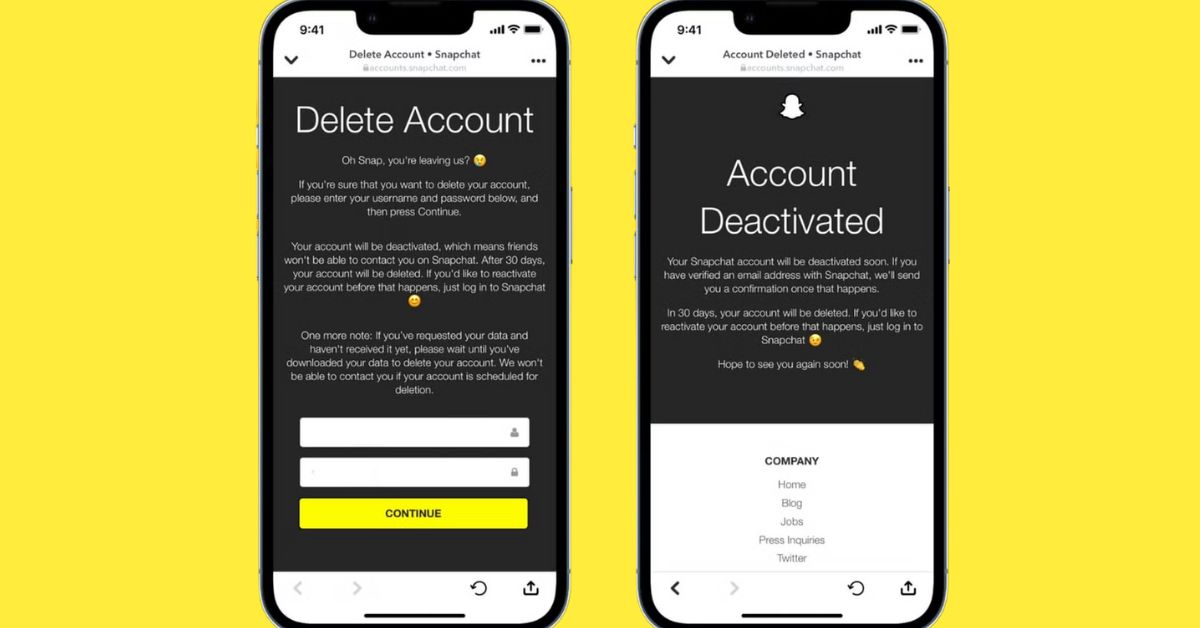
- After re-entering your details on the Delete Account page, simply click “Continue” and you’re done.
Method 2: Delete Snapchat On Web
To delete your Snapchat account on the web:
- Start by heading to the Snapchat accounts portal using any browser on your desktop or mobile device.
- Once logged in, you’ll find the option to click on “Delete My Account.”
- It’s important to input your username and password again to confirm your decision.
- After this verification step, simply click on “Continue,” and voilà! You’ve successfully taken control of your digital footprint, ensuring that your online presence reflects your current desires.
How To Download Your Snapchat Data
To safeguard your Snaps, chats, and saved memories,
- First navigate to your profile by tapping the icon in the top left of the app.
- Once there, hit the gear icon to access settings.
- Delve into the Privacy Control section to find “My Data.”
- Here, you can select what specific data you want to download, ensuring that you capture all the moments that matter most to you.
- After making your selections, pick the time range for your data download, and then simply submit your request.
- In just a short while, an email will arrive containing details on how to access your data.
This process not only serves as a bittersweet trip down memory lane but also allows you to hold onto personal treasures before bidding farewell to the app.
How To Deactivate Your Snapchat Account
If you’re looking to take a break from Snapchat without fully committing to a permanent deletion, the process isn’t as straightforward as you might think.
Unlike other platforms, Snapchat doesn’t offer a simple deactivation option. Instead, to deactivate your account temporarily, you’ll need to go through the deletion process, which actually puts your account on standby for 30 days.
This period allows you a grace window to reconsider just remember that if you don’t log in within those 30 days, your account will be permanently deleted, along with all your memories and snaps.
Can You Reactivate Your Snapchat Account?
Once you’re ready to dive back into the world of Snapchat, reactivating your account is a breeze.
- Simply open the app and log in.
- If you’ve forgotten your password, don’t worry, resetting it is straightforward.
- When prompted about reactivating your account, just tap “Yes.”
- A quick message will pop up, reminding you to wait a moment for the reactivation to process.
- After that, you can hit “OK” and revisit the app later to log in successfully.
Conclusion
Knowing how to delete Snapchat account is essential for those looking to take a break or permanently leave the platform. By following the straightforward steps outlined in this guide, you can ensure that your personal data is removed from Snapchat’s servers.
Remember, deactivating your account temporarily is an option if you’re unsure about making a permanent decision.
If you’ve made up your mind, taking this step can lead to more privacy and peace of mind. Don’t hesitate to follow the instructions and free yourself from Snapchat today!
FAQs
Can I reactivate my Snapchat account after deletion?
Yes, you can reactivate your account within 30 days by logging back in with your username and password.
What happens to my friends after I delete my account?
Your friends will no longer be able to see your account, and your profile, messages, and snaps will be removed.
Do I need to uninstall the app to delete my account?
No, uninstalling the app is not necessary to delete your account; you can manage it through the Snapchat account portal.